

Translating an Elementor website isn’t only about converting text from one language to another.
Every translated page should preserve the same layout, styling, spacing, images, buttons, and overall user experience as the original.
There are plenty of multilingual plugins available for WordPress that let you translate an Elementor website, either manually or automatically.
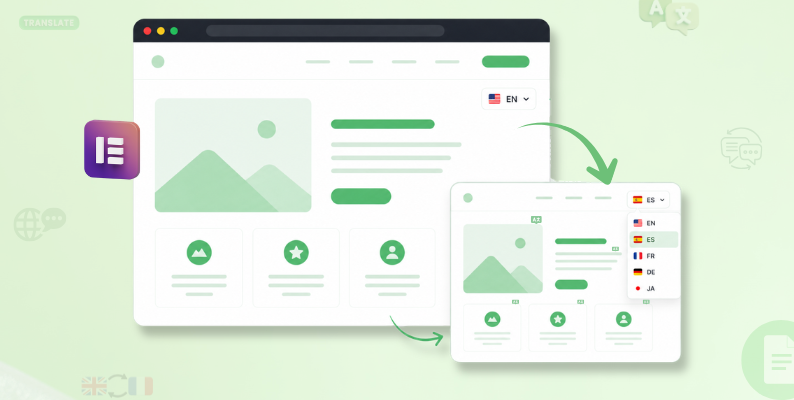
However, each approach comes with its own challenges.
With manual translation, every page, heading, button, form, and dynamic section has to be translated individually, which is manageable for a small website.
But it is a repetitive and time-consuming task as your content grows. Imagine translating hundreds of pages and then repeating the same process every time you update your website.
Now, on the other hand, no doubt automatic translation (offered by almost all multilingual plugins) significantly reduces manual effort and saves time, but not all of them work easily and are compatible with Elementor.
Some translate the text and leave you struggling with broken layouts, inconsistent styling, misplaced widgets, or design elements that don’t display correctly in different languages.
That’s why choosing the right translation solution is important.
In this guide, you’ll learn how to automatically translate your Elementor website while preserving its layouts, styling, and overall design.
But before that, let’s understand the multilingual translation solution for an Elementor website.
Linguator: Automatically Translate Elementor Website
Linguator AI is a free AI-powered multilingual plugin for WordPress that allows you to manually and automatically translate Elementor, Gutenberg, or the Classic Editor pages.
Free Multilingual Website Translation
Speak to your audience in their preferred language via AI-powered translators.
Using AI-powered translation providers such as Gemini AI, Chrome’s built-in AI, and Google Translate, to translate your entire WordPress website: pages, posts, menus, categories, metadata, media, and even custom post types.
If you’re managing a large website, you can use the bulk translation feature to translate multiple pages simultaneously instead of translating each one individually.
Step-by-step Translate Elementor Website Automatically
Now that you understand what Linguator is and how it helps translate your Elementor website, let’s walk through the steps below to set up Linguator and start translating your Elementor pages.
Step 1: Complete the Setup Wizard
When you activate Linguator for the first time, a Setup Wizard opens automatically. This wizard helps you configure the essential multilingual settings before you begin translating your website.
You’ll be asked to configure the following settings:
- Default: First, set the default language for your website. The default language is the one that will be displayed to visitors if their preferred language is not available.

- Language: Choose the translation languages for your website from the list of languages.
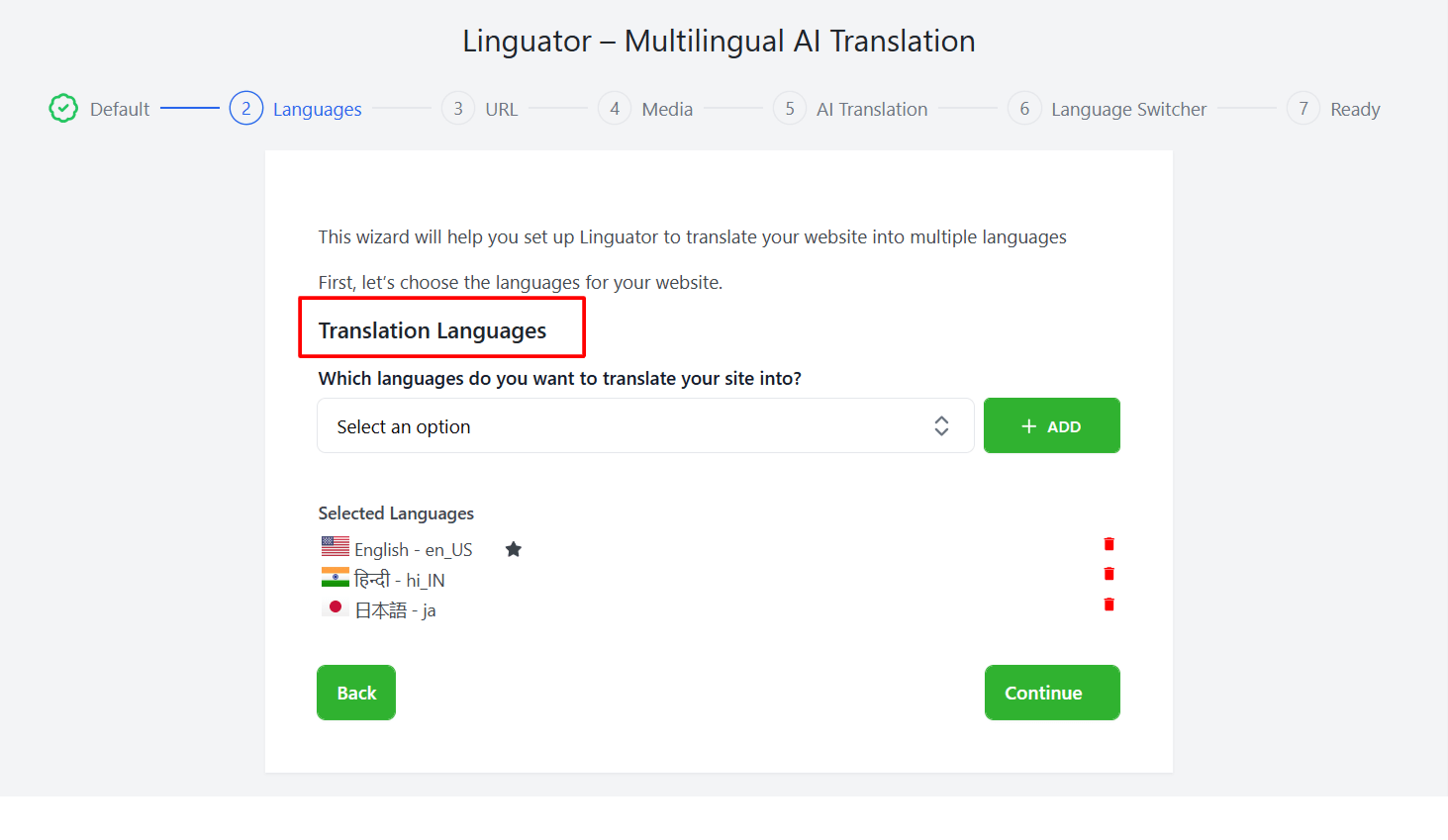
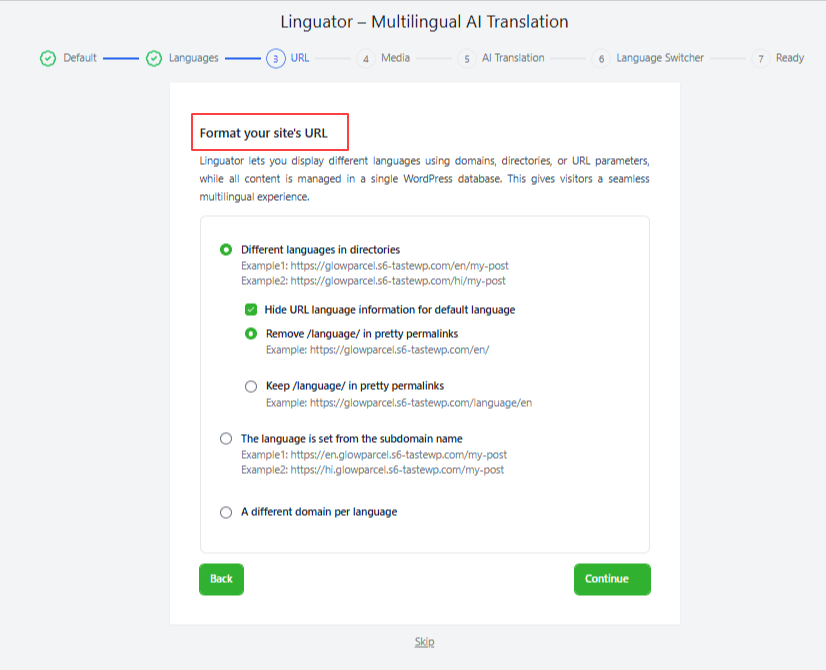
- URL: Choose how different language versions of your site will be displayed in the URL.
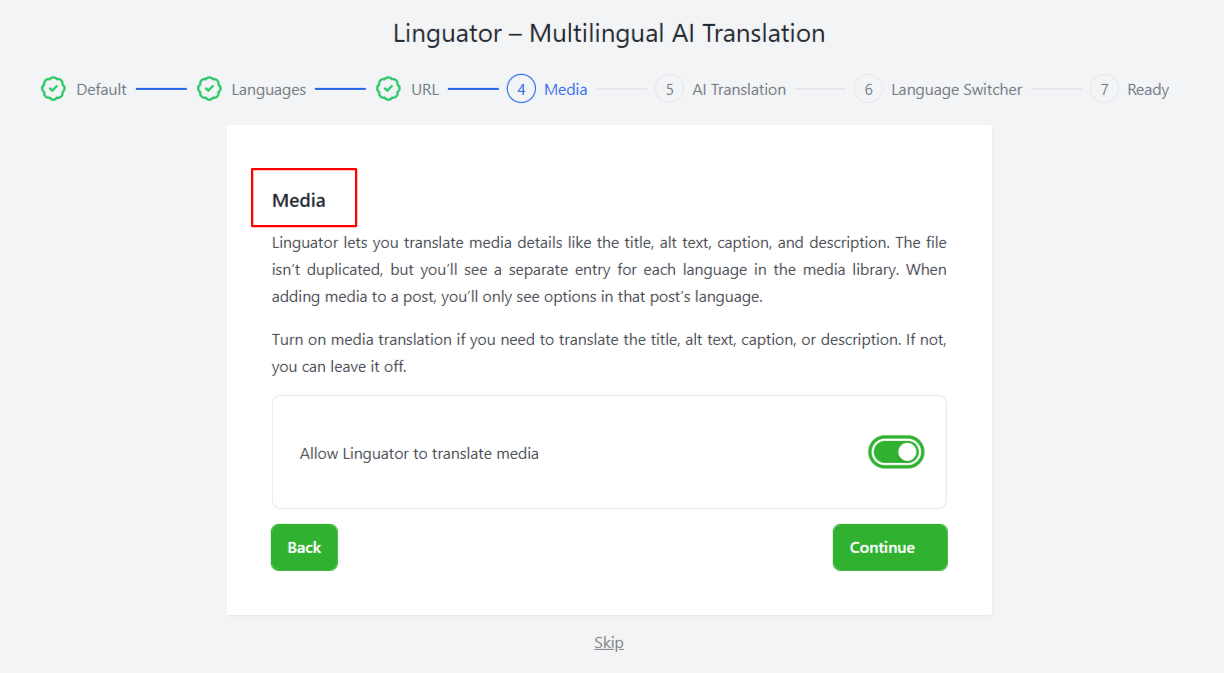
- Media: Turn on media translation if you want Linguator to translate media details such as title, alt text, caption, and description for each selected language.
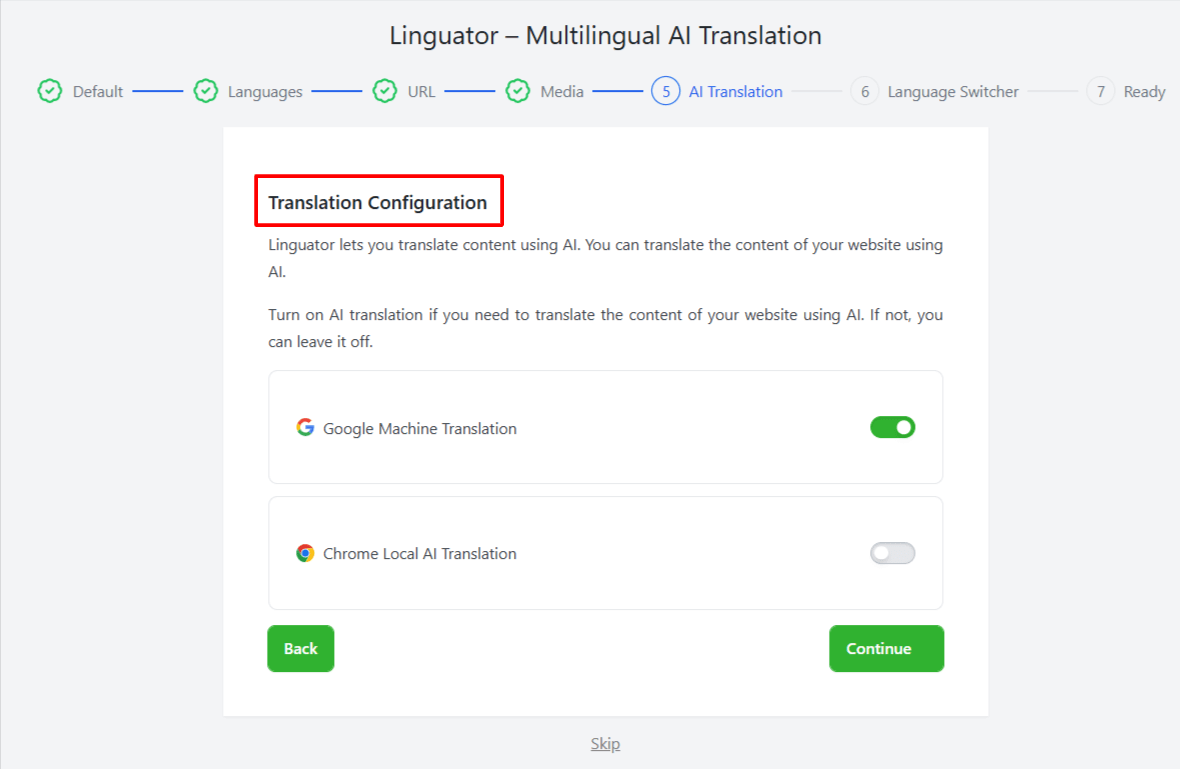
- AI Translation: Next, enable the translation providers from Google or Chrome’s built-in AI according to your preferences.
- Language Switcher: Select which language switcher should be displayed to users.

Once you’ve completed these settings, finish the setup wizard. Your multilingual website is now ready for translation.
Step 2: Open the Page in Elementor
- From your WordPress dashboard, navigate to Pages, locate the page you want to translate, and click Edit with Elementor.
Step 3: Choose the Translation Language
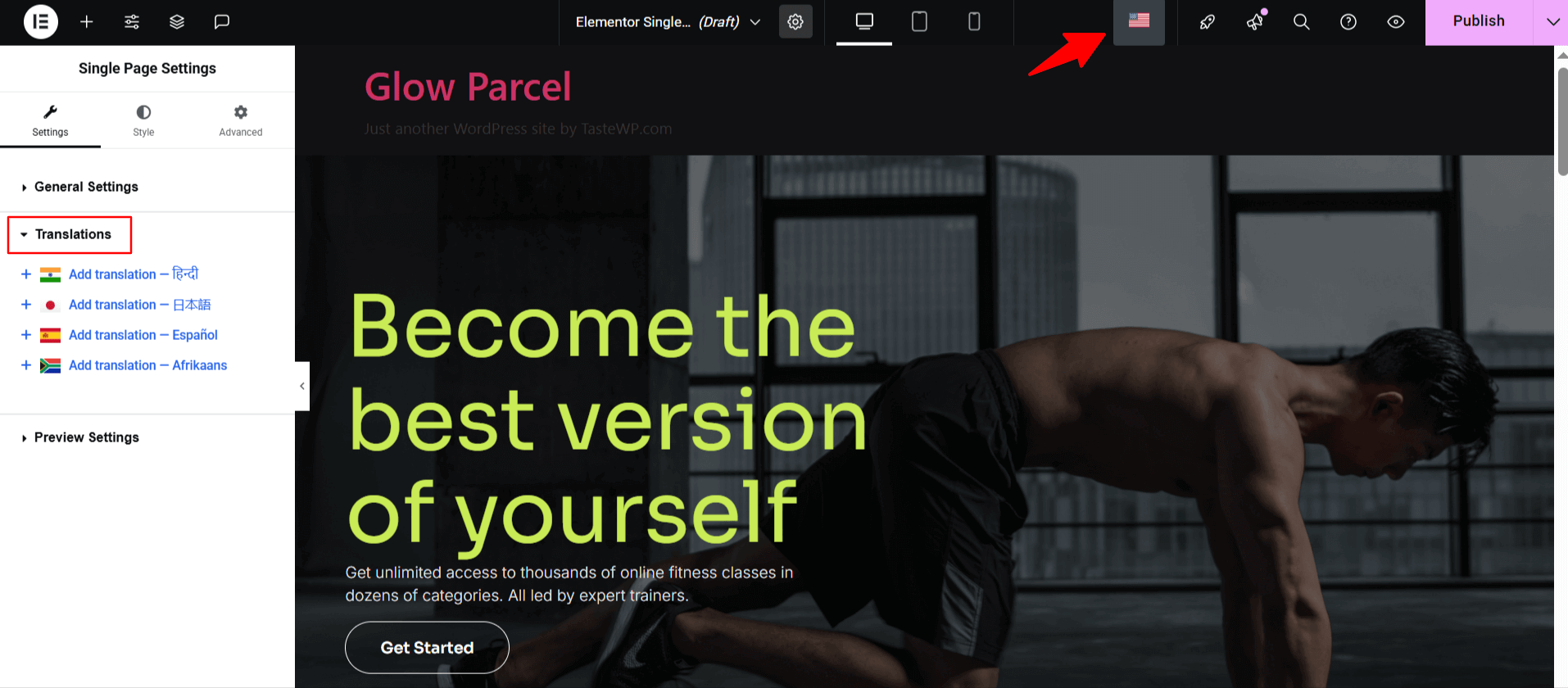
- Inside the Elementor editor, click the Flag icon in the top toolbar.
- A list of available languages will appear.
- Select the language into which you want to translate the page.
Step 4: Select an AI Translation Provider
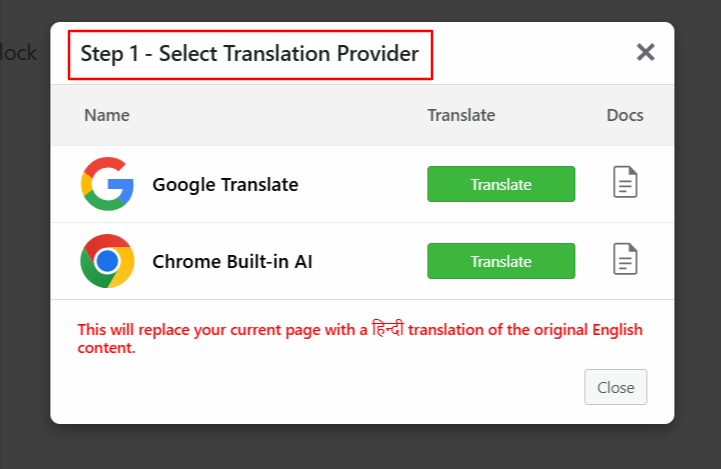
- After selecting the language, Linguator will ask you to choose an AI translation provider. Select the provider according to your translation requirements.
Step 5: Translate the Page
- Once the provider is selected, Linguator displays the original content alongside the translated content.
- Select translation language.
- The translation process will begin, and wait for a few minutes.
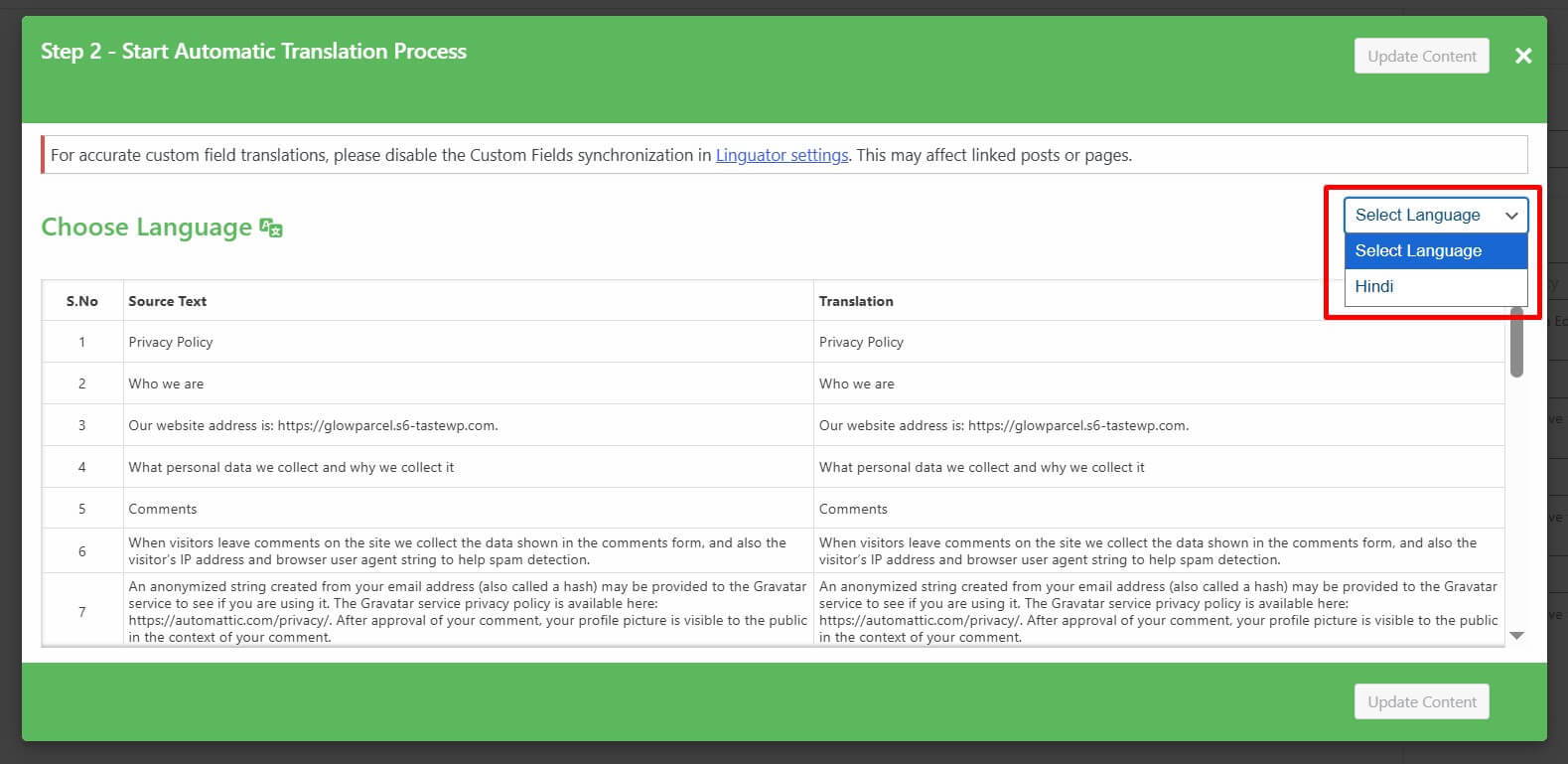
Step 6: Update and Preview the Translation
- After the translation is complete, click Update Content to save the translated version of the page.

You can now preview your website and switch between languages to verify the translated page.
You’ll notice that the translated version retains the same Elementor layout, styling, images, widgets, and overall design, providing visitors with a consistent browsing experience regardless of the language they choose.
Common Elementor Translation Issues (and How to Fix Them)
Even with automatic translation, you may occasionally run into issues while translating your Elementor website. Check out the solutions below to avoid these common problems.
| Problem | Solution |
| Page isn’t translated | Make sure you’ve selected a target language and translation provider. |
| Translation looks outdated | Re-run the automatic translation after updating the original page. |
| Some text remains untranslated | Check whether the widget contains dynamic or custom content and translate it manually if needed. |
| Images are not translated | Enable Media Translation in the Linguator Setup Wizard. |
| Language switcher isn’t visible | Verify that the language switcher is enabled in the plugin settings. |
Conclusion
Translating an Elementor website doesn’t have to involve hours of manual work or rebuilding pages for every language.
With the right multilingual solution, you can automatically translate your content while preserving the layouts, styling, and user experience you’ve already created.
Linguator simplifies the entire process by combining AI-powered translation with Elementor compatibility.
From the initial setup to translating and managing multilingual content, it helps you create a powerful and accurate multilingual Elementor website.
Frequently Asked Questions
Can Linguator translate Elementor pages automatically?
Yes. Linguator supports automatic translation for Elementor pages using Google Translate, Gemini AI, or Chrome’s built-in AI. Simply choose your target language and translation provider to generate a translated version of your page.
If you don’t prefer automatic translation, Linguator also offers you the option to translate manually.
Does Linguator work with Elementor Pro?
Yes. Linguator is fully compatible with Elementor websites, including those built with Elementor Pro.
Can I edit AI-generated translations?
Absolutely. After the automatic translation is complete, you can review and edit any translated content to improve accuracy or match your preferred writing style.
Will translating my Elementor page affect its design?
No. Linguator translates the text while preserving your Elementor layouts, sections, columns, and widgets, so your page design remains intact.
Can Linguator translate image metadata?
Yes. Just enable the media translation setting, and Linguator can translate image titles, alt text, captions, and descriptions.
Can I translate categories and tags using Linguator?
Yes. Linguator lets you translate WordPress categories and tags along with your pages and posts. You can automatically translate WordPress Categories & Taxonomies one by one or all at once (Bulk Translation).
Can I automatically translate the entire website in bulk?
Yes. Linguator allows you to automatically translate your entire WordPress website in bulk using AI-powered translation providers. Instead of translating each page individually, you can translate pages, posts, categories, tags, menus, metadata, media, and custom post types.
Is automatic translation good for SEO?
Yes. A properly configured multilingual website can improve international SEO by making your content accessible to users searching in different languages. Using language-specific URLs and translated metadata further enhances your visibility in search results.