


Using the Linguator plugin, you can easily translate your page/post via Chrome built-in AI.
Why Use Chrome Built-in AI?
Chrome’s built-in AI provides an accurate, fast, and convenient way to translate your website content in real time directly within the browser. This method uses Google Chrome’s native AI translation features that don’t rely on external APIs or third-party services, translations are processed on-device, ensuring better performance and privacy.
Translate Automatically via Chrome Built-in AI
Follow the steps below to automatically translate content using Chrome built-in AI:
- Edit the Page or Post that you want to translate.
- From the sidebar of the page editor, access the language settings tab.
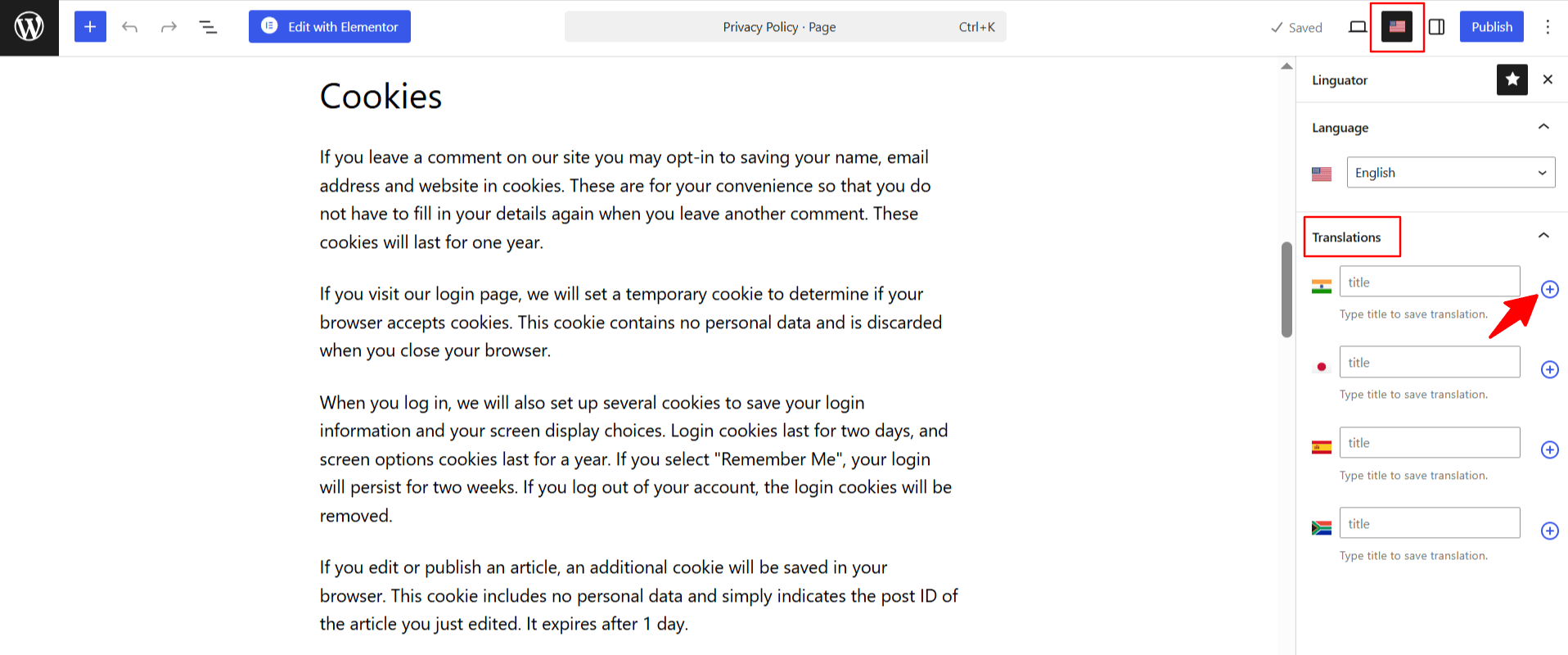
- Choose the language in which you want your page to be translated.
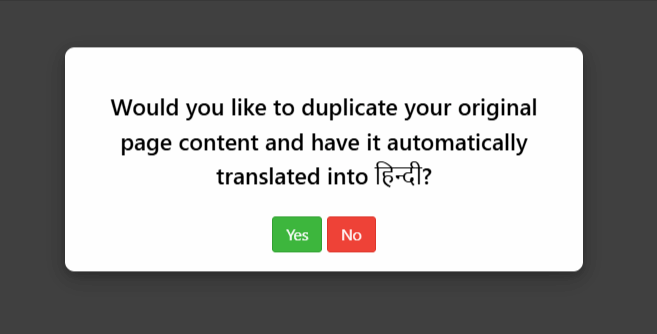
- A prompt will appear asking if you want to duplicate the original page content. Select “Yes”.
- Next, a new box titled Select Translation Provider will appear. Choose Chrome AI.
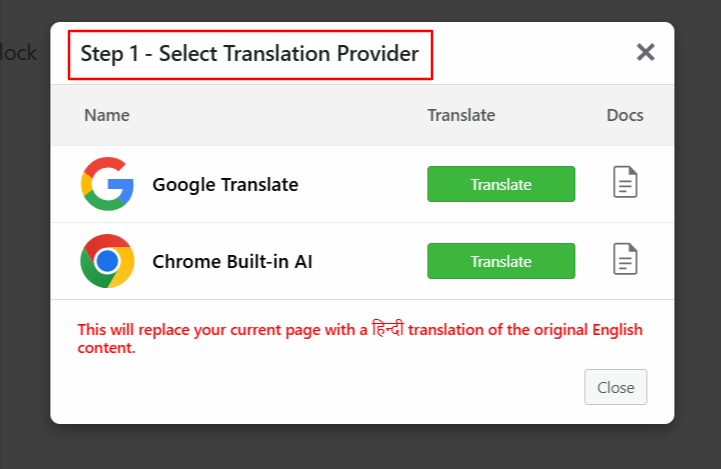
Note: If the selected translation provider is disabled, enable it from Linguator > Settings > AI Translation before starting the translation process.
- Once selected, a tab containing both the source text and translation text will appear.
- Click Translate button. The translation process will begin, and wait for a few minutes.
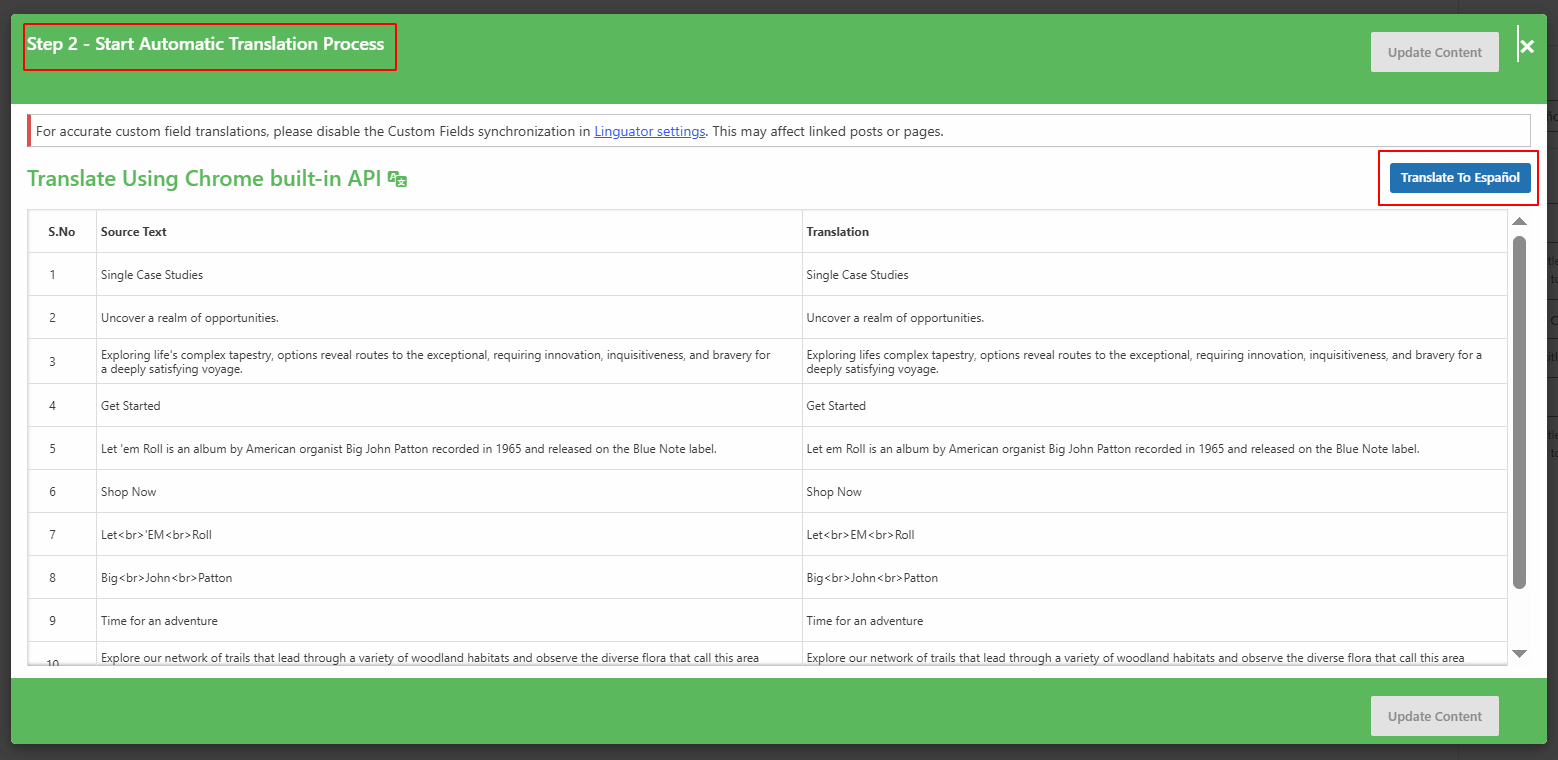
- After the translation completes, click Update Content.
- All content of the website will be translated into a selected language with a single click.
- Now, preview it and make manual edits to adjust translations for better accuracy.
That’s it! You have successfully translated your page/post automatically via the Chrome built-in AI using Linguator.