


Microsoft Edge Built-in AI requires the necessary language packs to be installed before it can translate content. Both the source and target languages must be available in Microsoft Edge’s on-device translation system.
Why Are Language Packs Required?
Microsoft Edge uses on-device language models to translate content. These models need the required language packs to be available on your device.
For example, if you want to translate content from English (en) to Hindi (hi), both the English and Hindi language packs must be installed.
Translation Language Setup
Before using Edge AI Translation in Linguator, complete the following setup:
Step 1: Use a Secure Connection
First, make sure that your connection is secure; otherwise, Translation API will not work properly. If you’re using a non-secure (http://) site or localhost:
- Please switch to a secure connection (HTTPS) or add this URL to the list of insecure origins treated as secure by visiting edge://flags/#unsafely-treat-insecure-origin-as-secure. Click on the URL to copy it, then open a new window and paste this URL to access the settings.
Step 2: Install Language Packs
- You can install languages by visiting the following link: edge://on-device-translation-internals/.
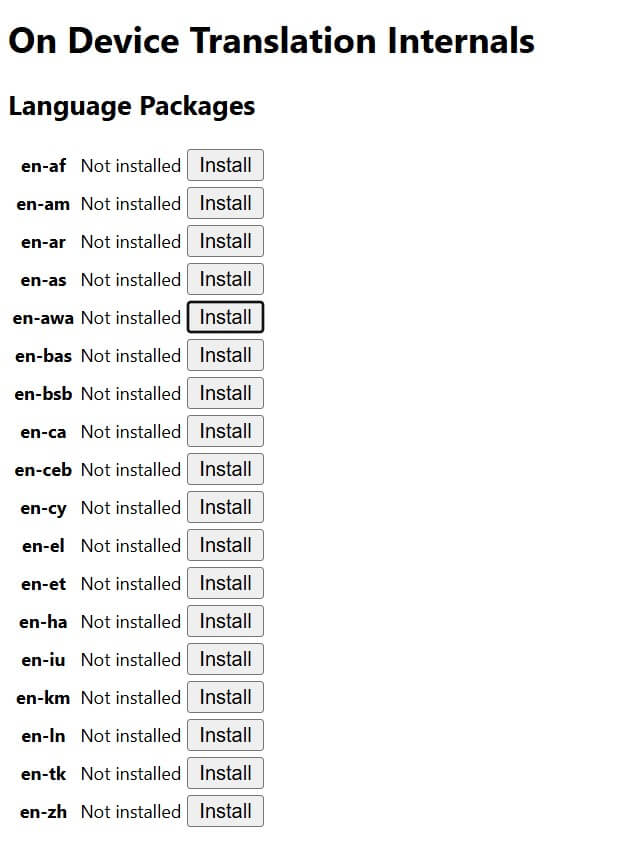
- Please check if both your source
(eg: en)and target(eg: hi)languages are available in the language packs list. - You need to install both language packs for translation to work. You can search for each language by its language code:
enandhi. - After the language pack is installed, reload or restart your browser.
- Now, you have to add this language to your browser’s system languages in Edge settings.
- Go to Settings > Languages > Add languages and add हिन्दी or English to your preferred languages list & reload the page.
That’s it, Linguator will use Microsoft Edge’s built-in AI capabilities to translate the content using the available on-device language models.