
Does your website speak only one language? Today, many WordPress website owners lose potential visitors and customers every day just because their content isn’t available in multiple languages.
You need a multilingual WordPress website to reach people around the world. But there are common problems like:
- Manual translation is time-consuming. Translating each page or post one by one takes weeks.
- Hiring translators is expensive.
- The technical setup is confusing.
- Some plugins don’t support all content types. Even after setup, menus, categories, metadata, or Elementor widgets often remain untranslated.
Well, all-in-one automatic translation is the solution. But how to do that? Majority of translation plugins need paid plans or third-party plugins to translate content automatically.
Introduction: Linguator AI – Auto Translate & Create Multilingual Sites
Linguator AI – Auto Translate & Create Multilingual Sites is an all-in-one free multilingual plugin that uses AI to translate your entire WordPress website: pages, posts, menus, categories, metadata, and even custom post types.

Here’s what makes Linguator a perfect translation tool:
- AI-Powered Translation: Linguator uses AI technology (Google Translate or Chrome’s built-in AI) to translate your content instantly. You can translate entire pages in seconds instead of spending hours doing it manually.
- Works with Popular Page Builders: Whether you use Gutenberg or Elementor to design your pages, Linguator supports both. It translates all your blocks’ and widgets’ content without affecting your page design or layout.
- Custom-type Translation: Unlike other tools that only translate pages and posts. With Linguator, you can easily translate: menus, categories, tags, Custom post types (like Events, Portfolios, Products), and Image titles and descriptions
- Bulk Translation: Got 50 or 100 pages? With the bulk translation feature, you can translate multiple pages at once with just one click.
- Language Switcher: Add a simple language switcher button anywhere on your website. Visitors can click it to instantly view your site in their preferred language. You can add it to your header, footer, sidebar, or menu.
- Manual Translation: Translate your content yourself without using automatic translators, or easily edit existing translations according to your preferences.
- SEO Friendly: Translate your site metadata like alt text and captions, and generate SEO-friendly language-specific URLs to improve your site’s global search performance.
Setup Linguator
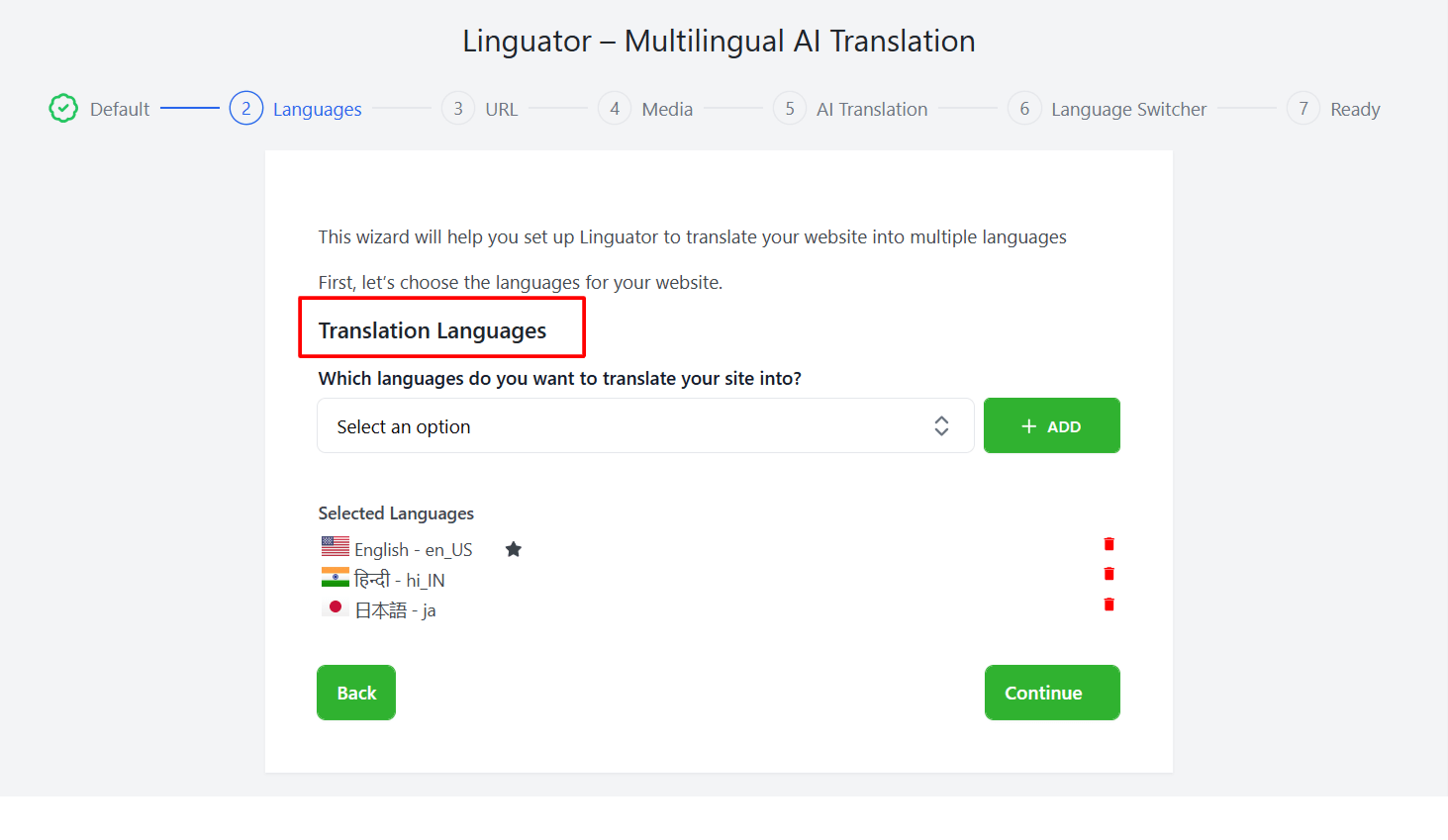
When you install & activate Linguator, you’ll be guided through a simple Setup Wizard to quickly configure your multilingual website. The Setup Wizard includes the following steps:
- Default: First, set the default language for your website. The default language is the one that will be displayed to visitors if their preferred language is not available.

- Language: Choose the translation languages for your website from the list of languages.
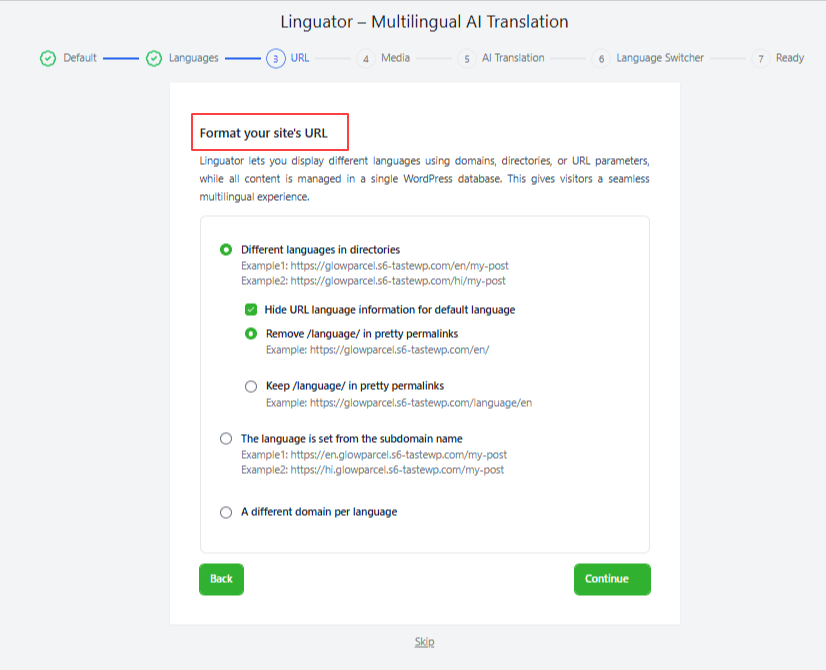
- URL: Choose how different language versions of your site will be displayed in the URL.
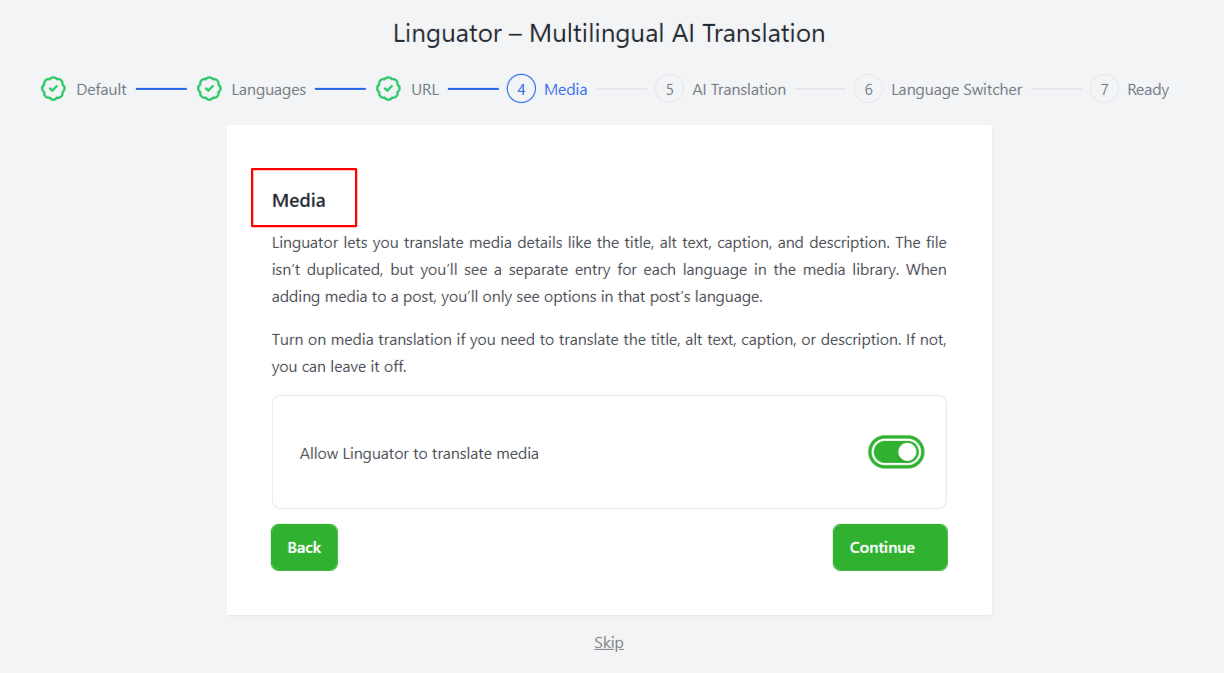
- Media: Turn on media translation if you want Linguator to translate media details such as title, alt text, caption, and description for each selected language.
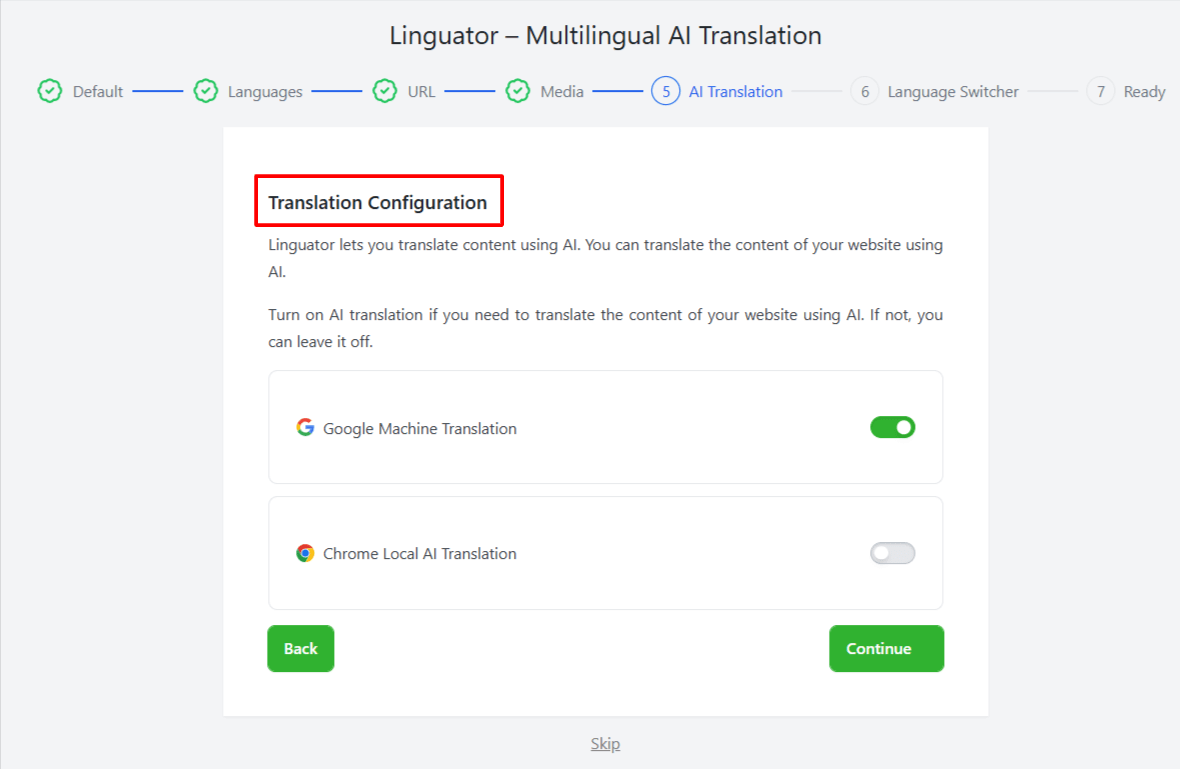
- AI Translation: Next, enable the translation providers from Google or Chrome’s built-in AI according to your preferences.
- Language Switcher: Select which language switcher should be displayed to users.

Once you’ve completed the Linguator setup, your multilingual WordPress website is ready. Now it’s time to translate your content.
Linguator offers multiple ways to translate your WordPress website depending on your needs, whether you want to translate a single page, bulk translate your entire site, or inline translate specific blocks or widgets. Check out our detailed step-by-step documentation for each translation method: Linguator Docs.