

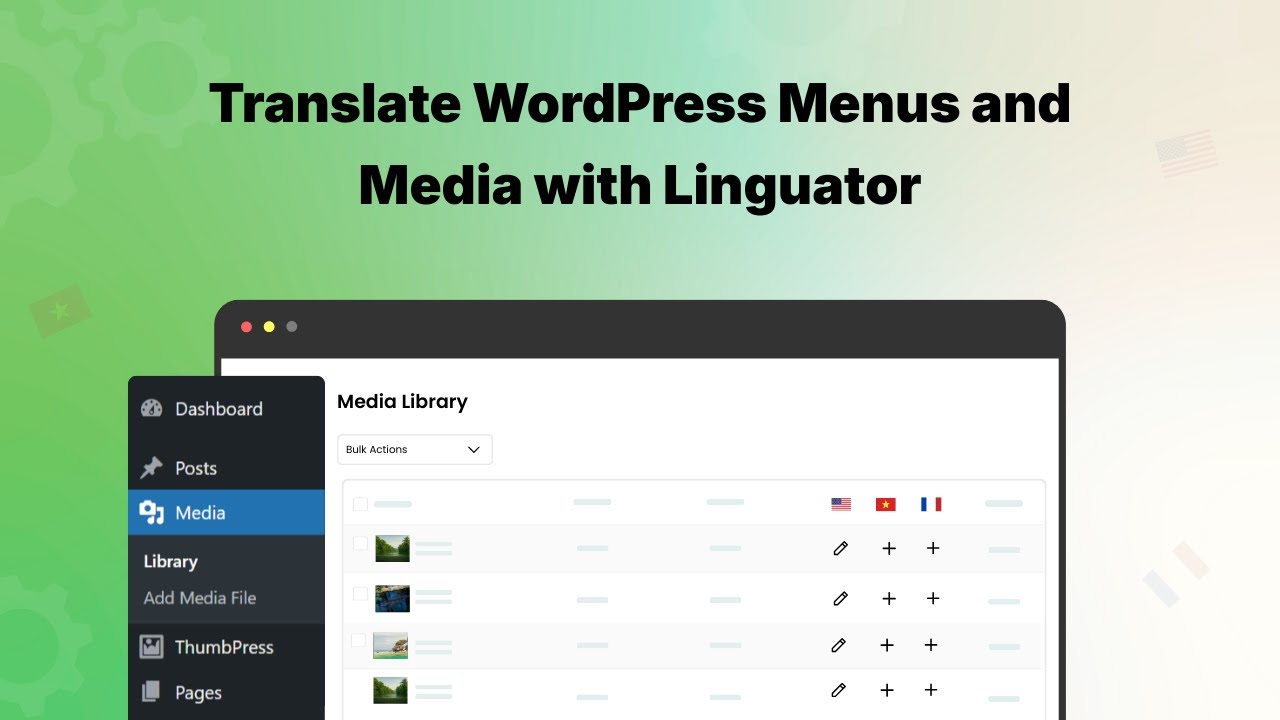
In this guide, learn step-by-step how to translate your site’s menus and media elements using Linguator.
Translate Menus
With Linguator, you can easily create and manage language-specific navigation menus for your multilingual website. Each menu can be customized according to the language it represents.
Follow the steps below to translate your menus:
- Go to your WordPress dashboard > Appearance > Menus.
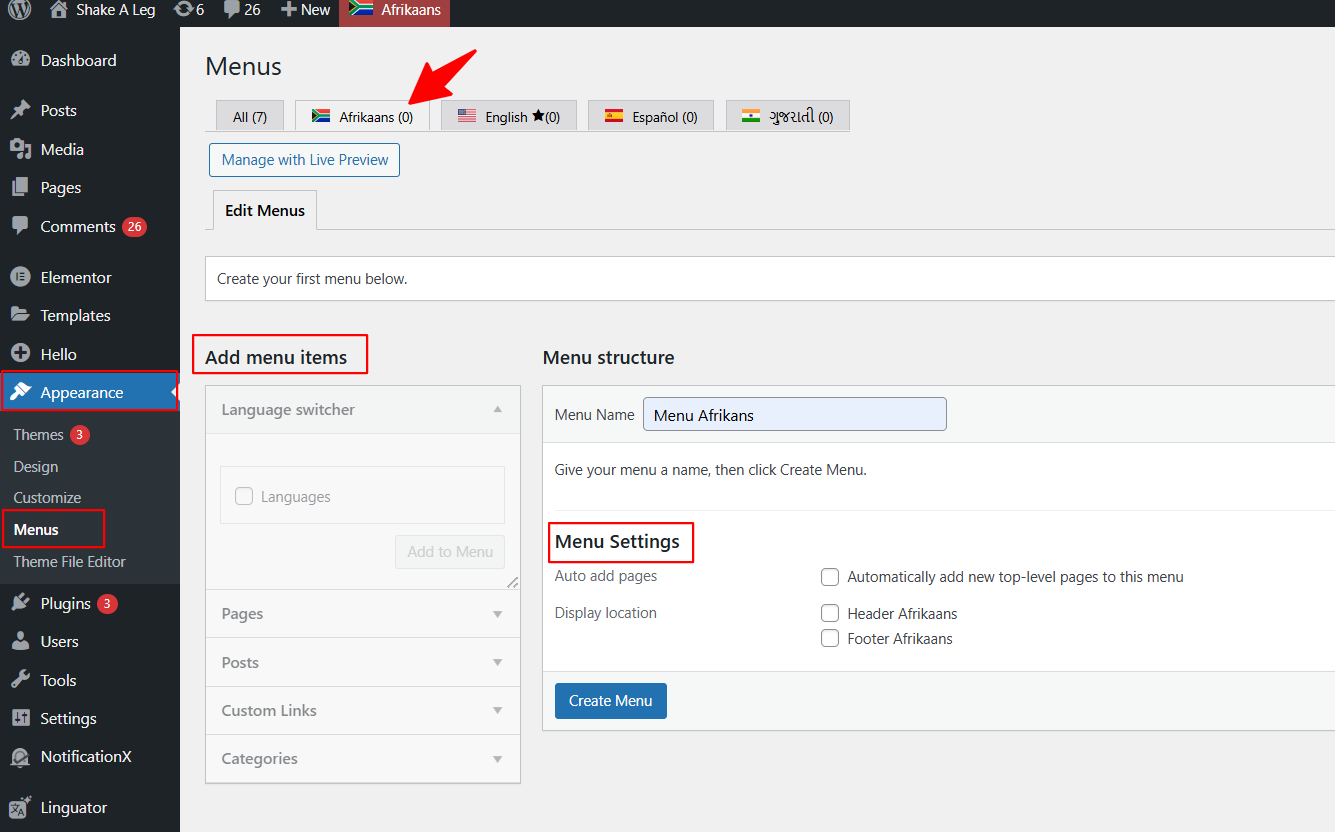
- Select the language for which you want to create a new menu.
- Enter a menu name for the selected language.
- Next, select the pages, posts, or other content you want to include in this menu.
- Click Add to Menu, then arrange the items in your preferred order.
- After you’re satisfied with your menu structure, click the Create Menu button.
To create a menu in another language, simply repeat the same steps for each language you’ve added.
Menu Sync
Using Menu Sync, you can quickly synchronize your primary menu structure across multiple languages, instead of manually recreating menus for each language.
Follow the steps below to sync menu:
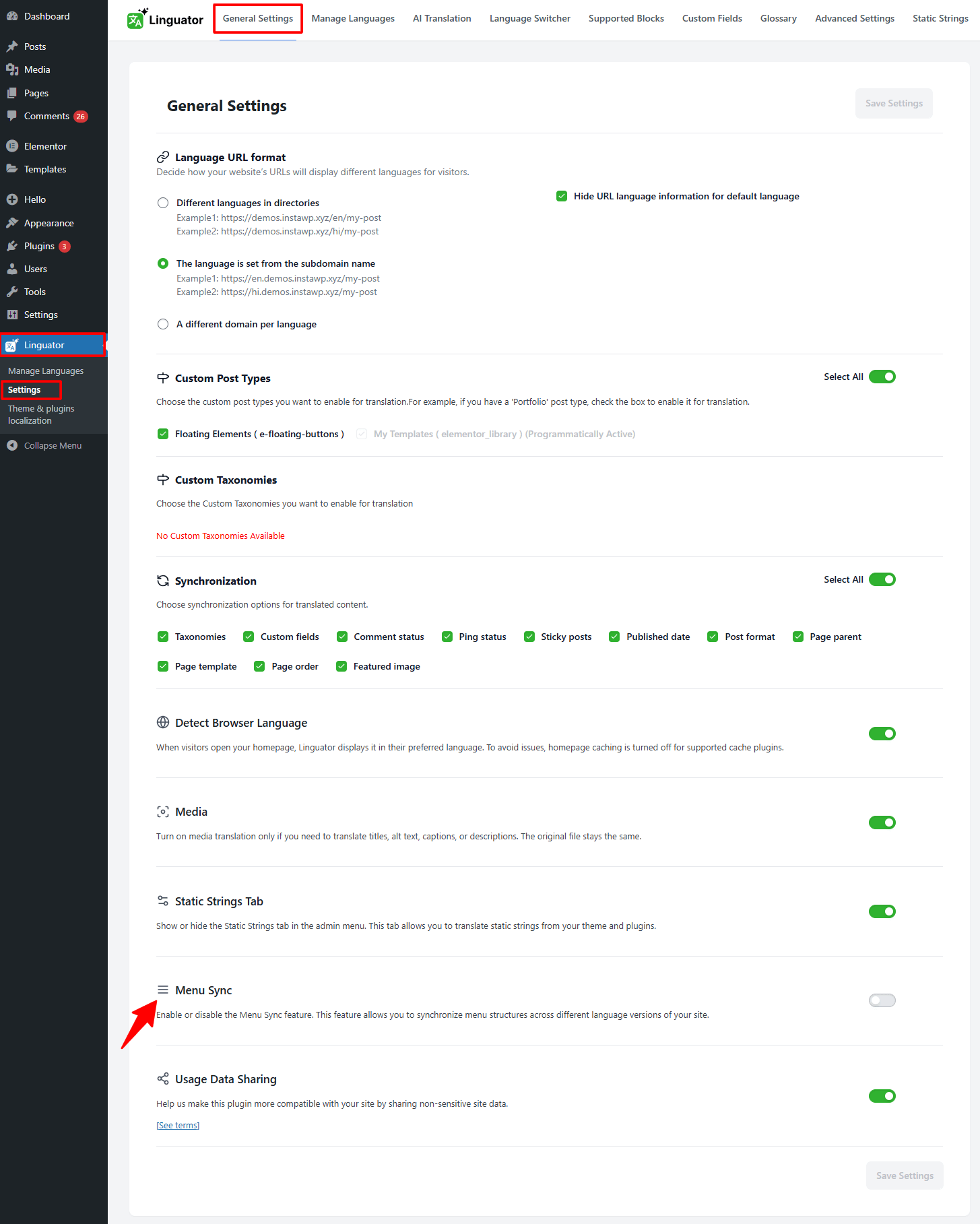
- From your WordPress Dashboard, navigate to Linguator > Settings > General Settings.
- Toggle on the Menu Sync option and click Save Changes.
- Next, navigate to Appearance > Menus.
- Select the menu you want to sync (Make sure your default language menu is properly set up).
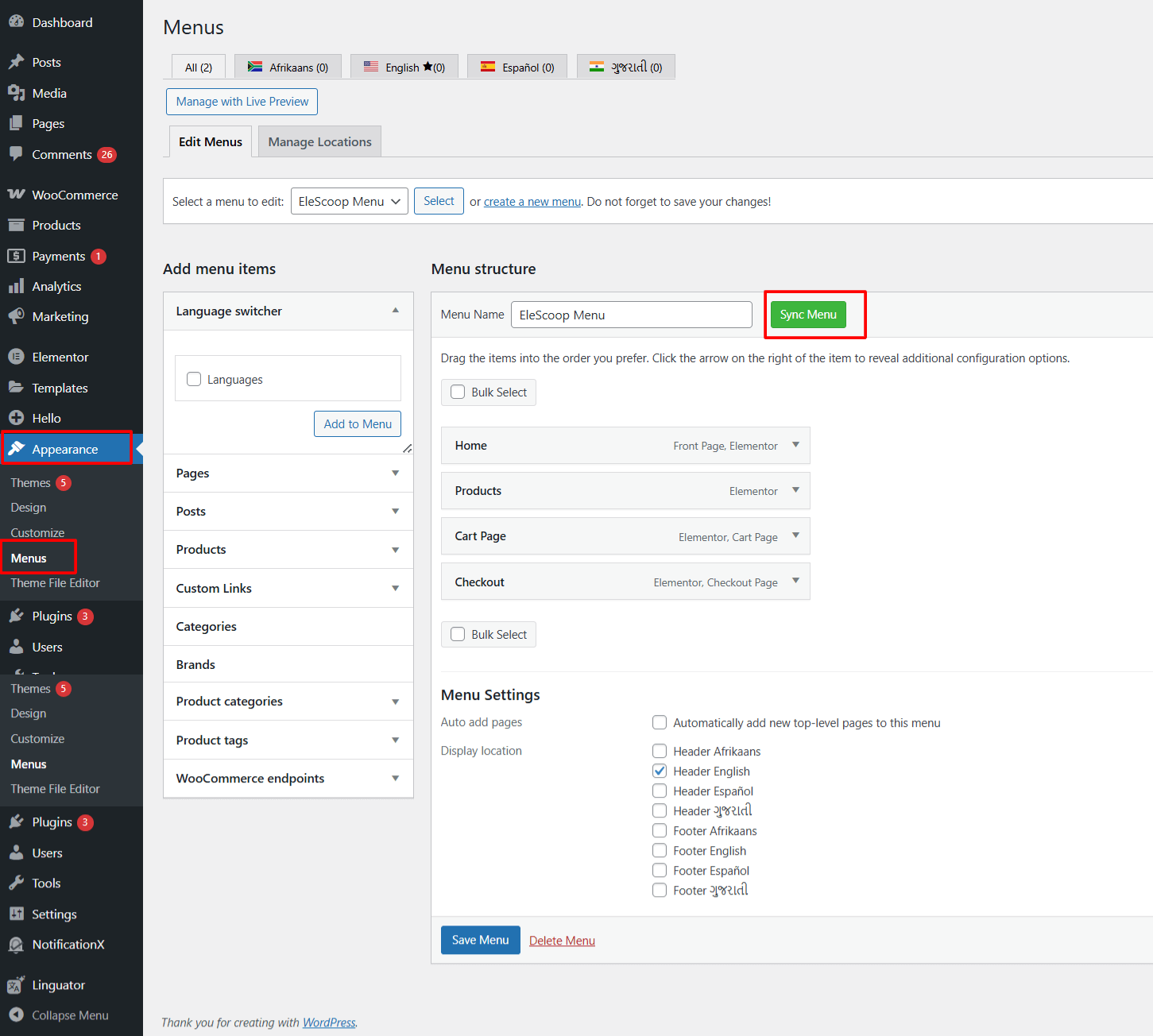
- Click the Sync Menu button.
- A popup will appear asking you to select the languages you want to sync the menu with.
- Choose one or more target languages from the list and click Sync.
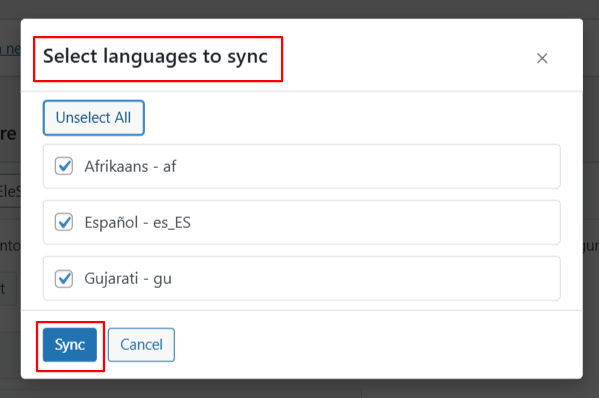
- Linguator will now copy the menu structure into the selected languages automatically.
Translate Images, Alt Texts, and Media Titles
Follow the steps below to translate your images, alt texts, and media titles using Linguator:
- Go to your WordPress Dashboard, navigate to Media > Library.
- Switch to the List View you’ll see language icons (like flags or “+” symbols) next to each media item, as shown in the image.
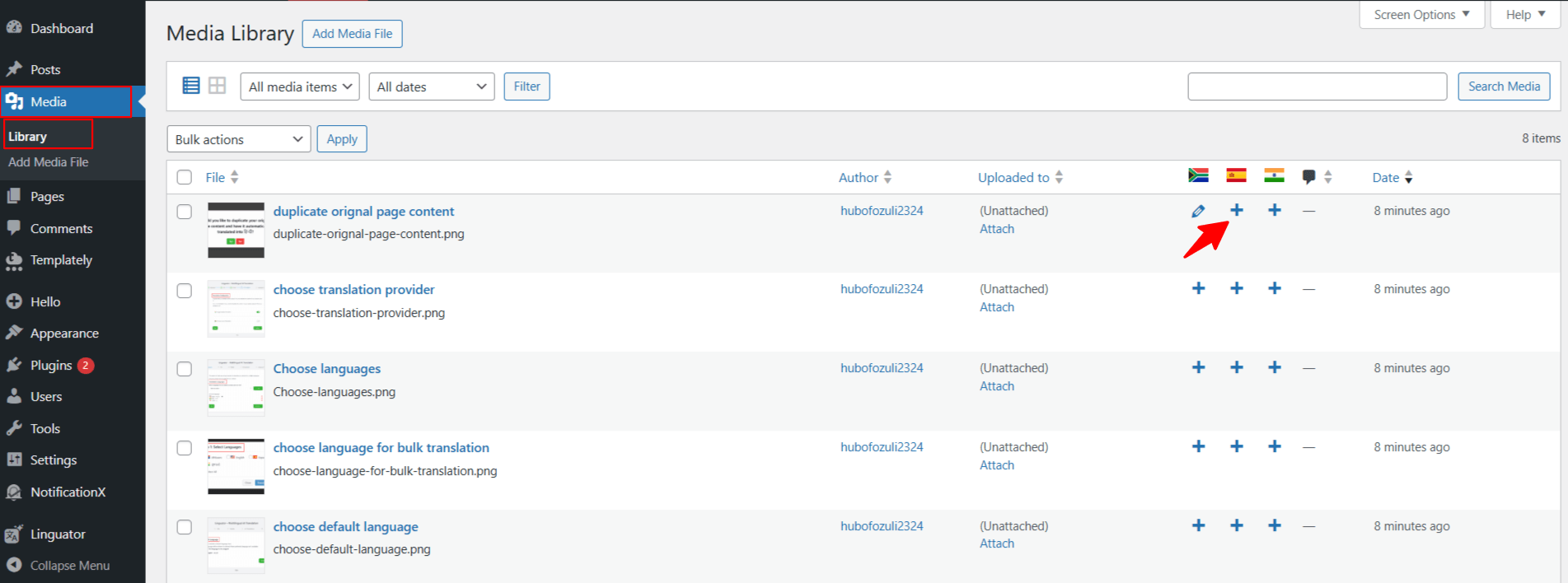
- Click the “+” icon next to the language you want to translate your image or media into.
- A new translation window will appear, enter the translated title, caption, alt text, and description for that image or media file.
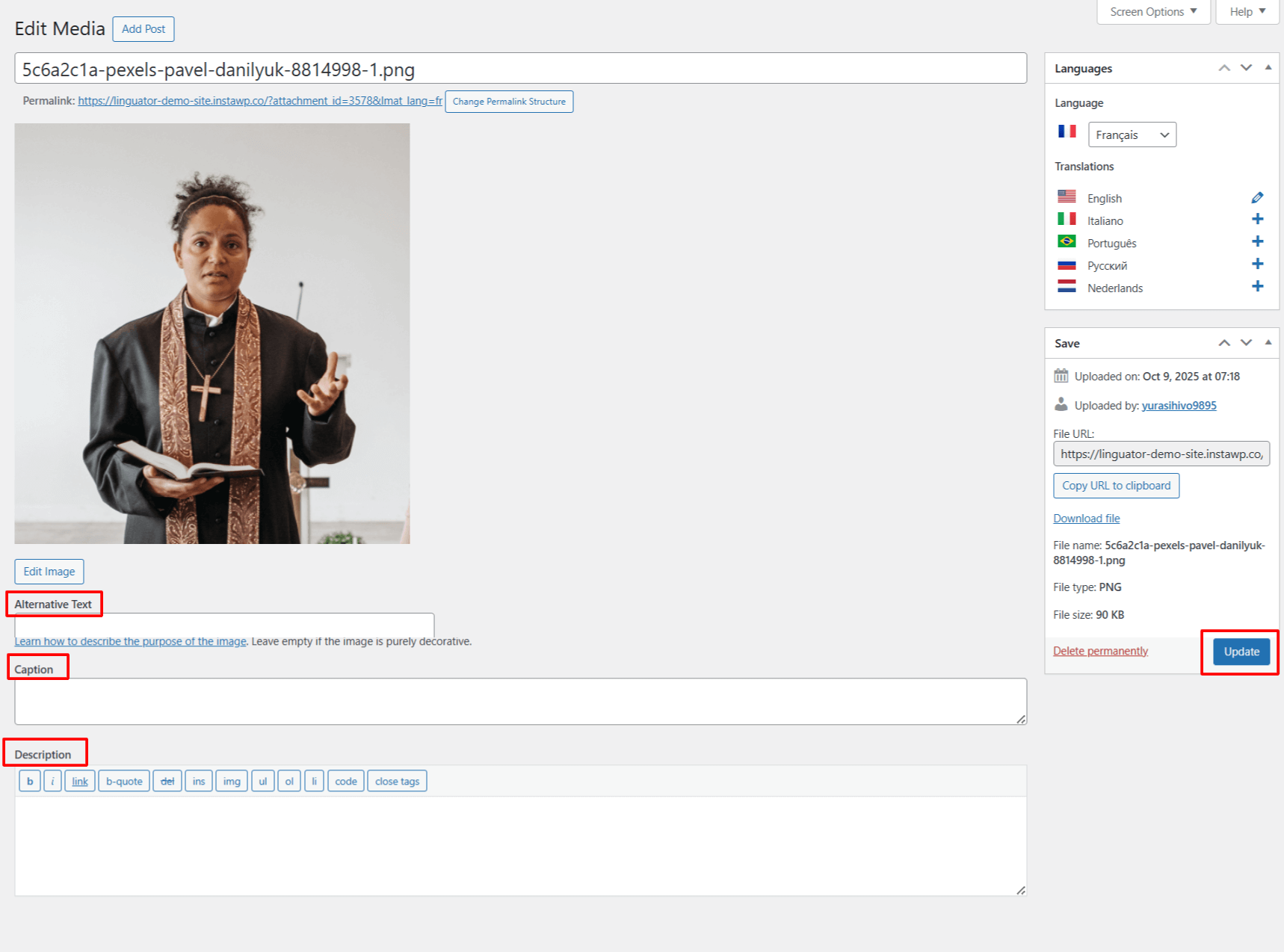
- Once you have added the translated text, click Save or Update.
Repeat the same steps for other media files you want to translate.